
 
     |
| Problem with the 'C' drive on my desktop. Help! (Page 2/3) |

|
williegoat
|
APR 30, 07:31 PM
|
|
|
My computer knowledge is like my automotive knowledge. I can set the timing on an old Harley with a piece of cellophane off a cigarette pack, but I don't know how to open the hood on a new car.
|
|
|
|
Cliff Pennock
|
APR 30, 07:38 PM
|
|
Windows 7 supports trimming, but it's not always enabled. Thinking about it a little bit more, I doubt it's a trimming problem since in that case you should still be able to write something, albeit incredibly slow.
But if you want to rule out a trimming problem: most (all?) SSDs do trimming (themselves) when they are powered and idle. Unfortunately, in Windows, an SSD is never idle. One trick is to restart your computer and go into the BIOS. The SSD will be powered and idle. Just let it sit there for about 30 minutes and it should trim itself. Then simply exit the BIOS.
Also try starting Windows in safe mode and see if you can then write to the SSD.
|
|

|
Patrick
|
MAY 01, 12:06 AM
|
|
| quote | Originally posted by williegoat:
If you have another machine, this might be a good time to pull that drive out and see if you can access and copy it to another drive.
|
|
That's what I'd do. If you don't have another PC, but have a laptop, use one of these inexpensive SATA to USB3.0 adapters.
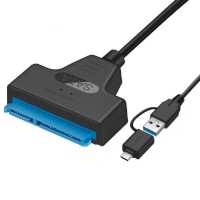 | | CLICK FOR FULL SIZE |
[This message has been edited by Patrick (edited 05-01-2024).]
|
|
|
|
Jake_Dragon
|
MAY 01, 01:13 AM
|
|
|
First thing you need to backup the drive. Before you run any kind of tools as there is always a risk of data loss during troubleshooting
|
|
|
|
otakudude
|
MAY 01, 01:21 AM
|
|
My brother logged into my computer with TeamViewer and solved the issue. First, he freed up an additional 112GB of space on the SSD by moving files to other drives using right-click copy & paste functions. By moving things off the desktop that were stored on the C drive (the SSD) he was hoping that it might free up resources and enable the OS to go back to working normally. While that WILL extend the life of the drive, it did not fix the issue.
His next step was to do a web search. The first couple sites he looked at didn't give him any useful answers, but on this page Fix: Can’t Move Desktop Icons on Windows the third tip did the trick:
3. Hit ESC Key Three Times
In this method, you will need to hit the ESC key three times and after that try to move icons on your Desktop. This method is compatible with all keyboards and operating systems from Windows 7 to Windows 10.
The page does not explain WHY this works. It just goes on to the next tip. But he tried it, and it worked.
So now I can drag & drop / move files as normal. And the bonus is that with my c drive SSD no longer 98+% full, it will last longer & should run better. He also gave me shortcuts that take me directly to the files he moved to other drives, so there is no loss of convenience.
I'm sharing this tip so that anyone else who may face this problem in the future can give it a try. Thanks to everyone here for your suggestions.
|
|

|
Patrick
|
MAY 01, 02:48 AM
|
|
| quote | Originally posted by otakudude:
...two days ago I suddenly could not move, delete or otherwise alter any of the files or pictures on my desktop nor could I add anything to the drive.
|
|
| quote | Originally posted by otakudude:
My brother logged into my computer with TeamViewer and solved the issue. First, he freed up an additional 112GB of space on the SSD by moving files to other drives using right-click copy & paste functions. By moving things off the desktop that were stored on the C drive (the SSD) he was hoping that it might free up resources and enable the OS to go back to working normally. While that WILL extend the life of the drive, it did not fix the issue.
|
|
Okay, I'm confused here. You stated you "could not move" files, yet your brother was apparently able to move them.  What did he do that you couldn't? You weren't able to open your Desktop folder and move files like your brother did? What did he do that you couldn't? You weren't able to open your Desktop folder and move files like your brother did?
|
|
|
|
otakudude
|
MAY 01, 03:02 AM
|
|
| quote | Originally posted by Patrick:
Okay, I'm confused here. You stated you "could not move" files, yet your brother was apparently able to move them. What did he do that you couldn't? You weren't able to open your Desktop folder and move files like your brother did? |
|
Rather than left-click drag and drop the files (which did not work), he right-click to 'cut' the selection and pasted the folders to the new location.
I have absolutely no idea why one worked when the other didn't but I'm not going to complain as all my data was saved successfully.
What really has me curious is that all it took to solve this issue was hitting the escape key three times. I've subsequently searched for info regarding using the esc key as a means of repair but can find no reference to this, much less why this would work.[This message has been edited by otakudude (edited 05-01-2024).]
|
|
|
|
Patrick
|
MAY 01, 03:39 AM
|
|
| quote | Originally posted by otakudude:
Rather than left-click drag and drop the files (which did not work), he right-click to 'cut' the selection and pasted the folders to the new location.
I have absolutely no idea why one worked when the other didn't...
|
|
"left-click drag and drop the files" is copying the files, as opposed to your brother cutting and pasting which does not. Your method would've been duplicating the files, which if you were trying to move files from one folder to another on the same crowded drive, is the last thing you would've wanted to be doing.[This message has been edited by Patrick (edited 05-01-2024).]
|
|
|
|
Cliff Pennock
|
MAY 01, 03:52 AM
|
|
I'm 100% sure that hitting the ESC key three times did nothing and it was mere coincidence it started working after that.
I can only think of one scenario where hitting the ESC key a few times would actually help and that is when you have a pop-up window open off screen which is stealing focus. That happens to me quite often since I have four monitors connected to my PC and most of the time only one is switched on. But that would also prevent copying/moving/deleting files from other drives, not only the C drive.
Anyway, glad it's solved. Next thing to do is immediately make a backup of your C drive. Don't assume this is a one time glitch. It might return and you might not be able to solve it the next time.
|
|
|
|
otakudude
|
MAY 01, 04:27 AM
|
|
| quote | Originally posted by Patrick:
"left-click drag and drop the files" is copying the files, as opposed to your brother cutting and pasting which does not. Your method would've been duplicating the files, which if you were trying to move files from one folder to another on the same crowded drive, is the last thing you would've wanted to be doing.
|
|
I figured that was the reason I couldn't move anything from one location on the desktop to another but that does not explain why I could not copy-paste anything to an external drive nor even delete any anything, not even a single photo, from the desktop itself.
|
|
|
|